How to add Sigil to your phone's home screen
Updated
Sigil runs in a browser, but it can be added to your phone's home screen — and then opened like an ordinary app: by its icon, full screen, with no address bar.
Dispatcher's desk
Good morning, Іван Демченко
2 on route · 0 submitted
Company profile
All companies
PUESC credits
27pcs
It is the same Sigil and the same account. Nothing is installed from the App Store or Google Play, and it takes almost no space.
iPhone (Safari)
- Open sigil.com.ua in Safari.
- Tap the Share button at the bottom of the screen.
- Scroll the list and choose Add to Home Screen.
- Confirm the name and tap Add.
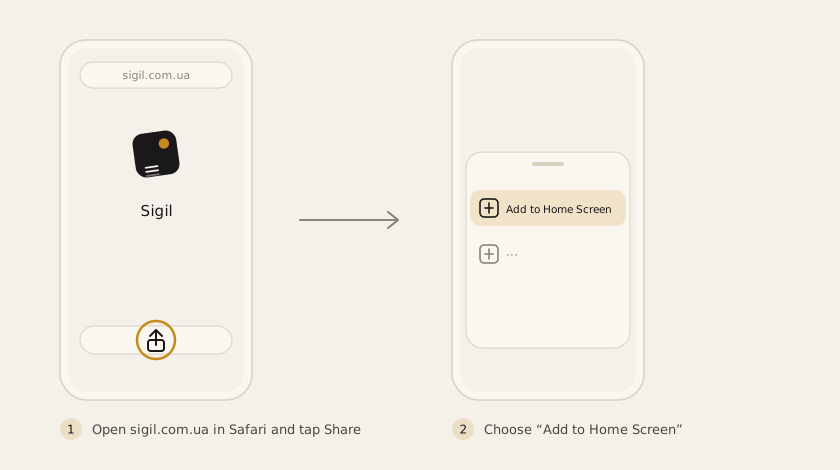
Safari only — Chrome on the iPhone does not offer this.
Android (Chrome)
- Open sigil.com.ua in Chrome.
- Tap ⋮ in the top right corner.
- Choose Install app or Add to Home screen.
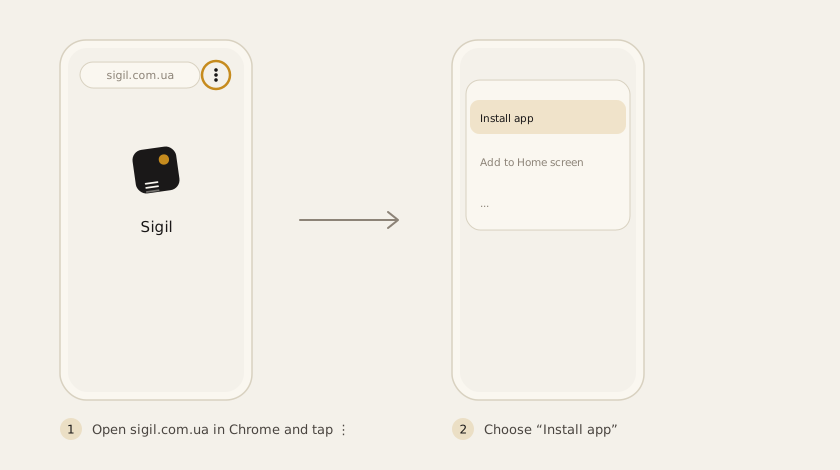
Chrome sometimes offers the installation itself, in a bar at the bottom of the screen — then the button in that prompt is enough.
What it gives you, and what it does not
- An icon on the screen
- a window without the address bar
- you stay signed in between launches
The internet is needed exactly as it is in the browser: Sigil talks to PUESC at the moment you act, so a declaration cannot be filed without a connection.
After opening it from the icon for the first time, sign in — the phone treats that window as separate from the browser, so the sign-in has to be done once more.
See also
A demo or training for your team
30 minutes online. We show how Sigil™ files an RMPD from a CMR and answer questions about your runs.