A tour of the interface
Updated
Where things are in Sigil. The menu is the same on a computer and on a phone; on a phone it sits at the bottom of the screen.
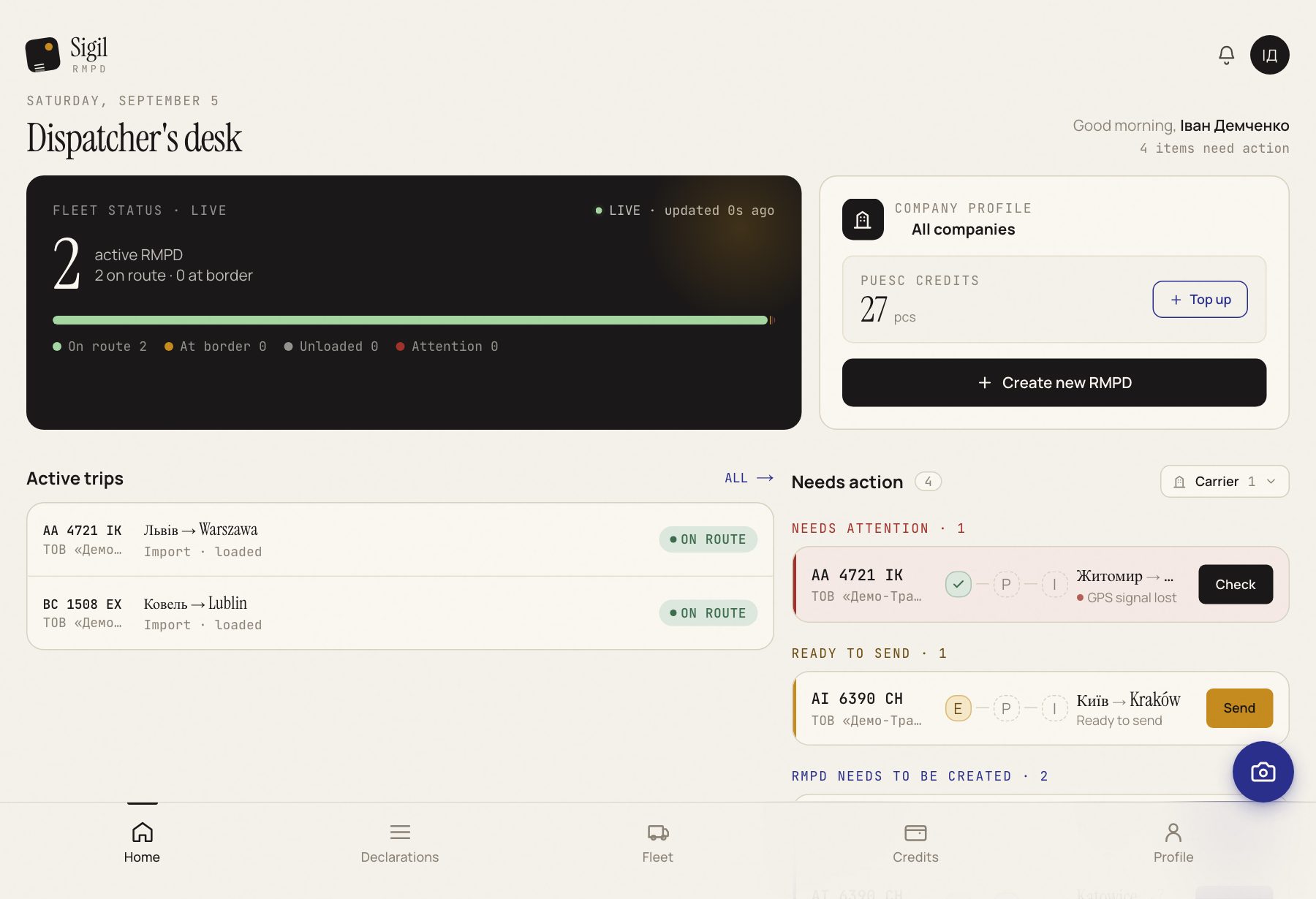
Home
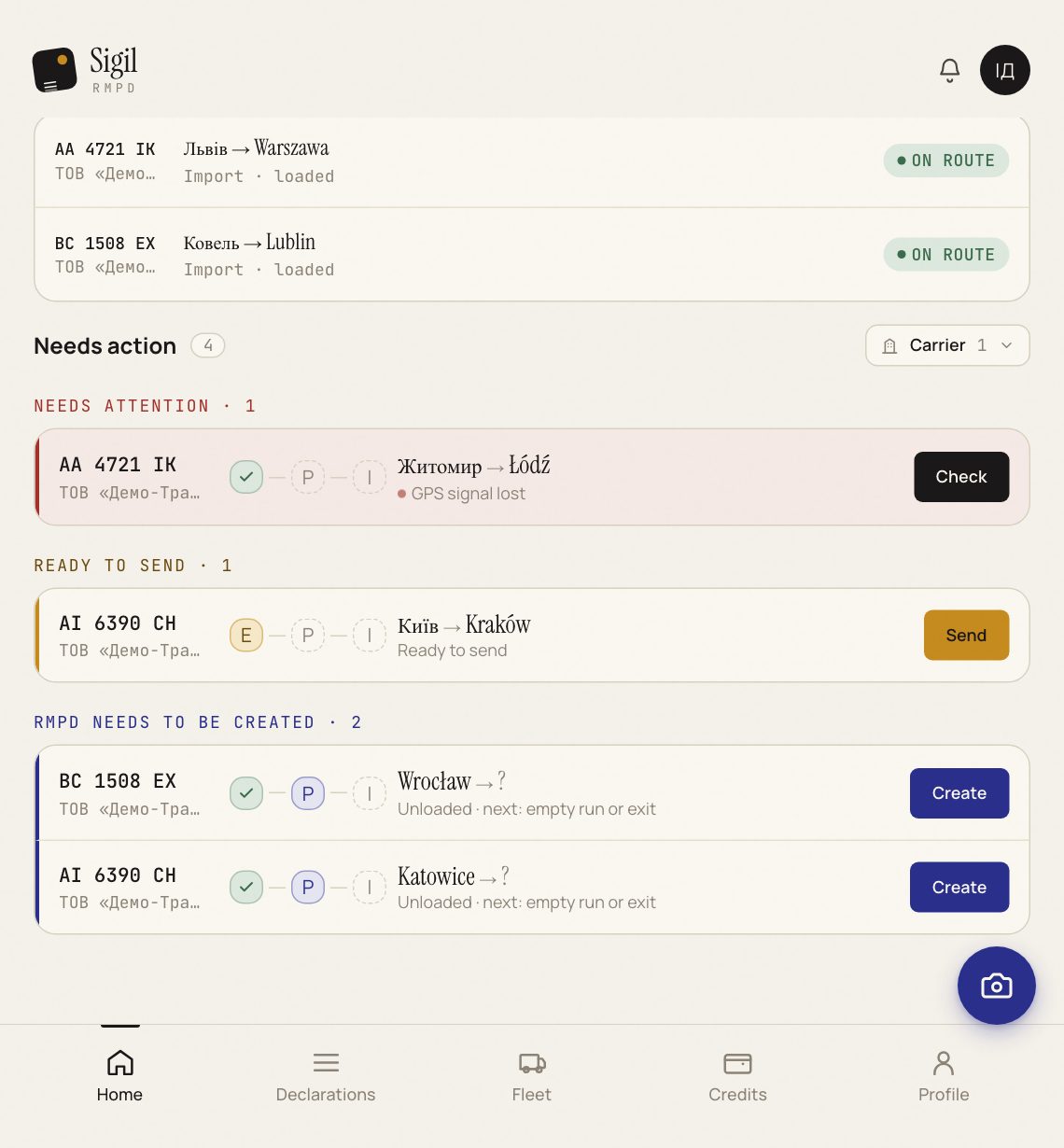
What you need to see every morning. The "Active transports" block: which trucks are on the road right now, with which plates and where to. The "Needs action" block: declarations with something wrong, GPS gone, ready to submit and not submitted, still without an RMPD number. The Create new RMPD button is here too.
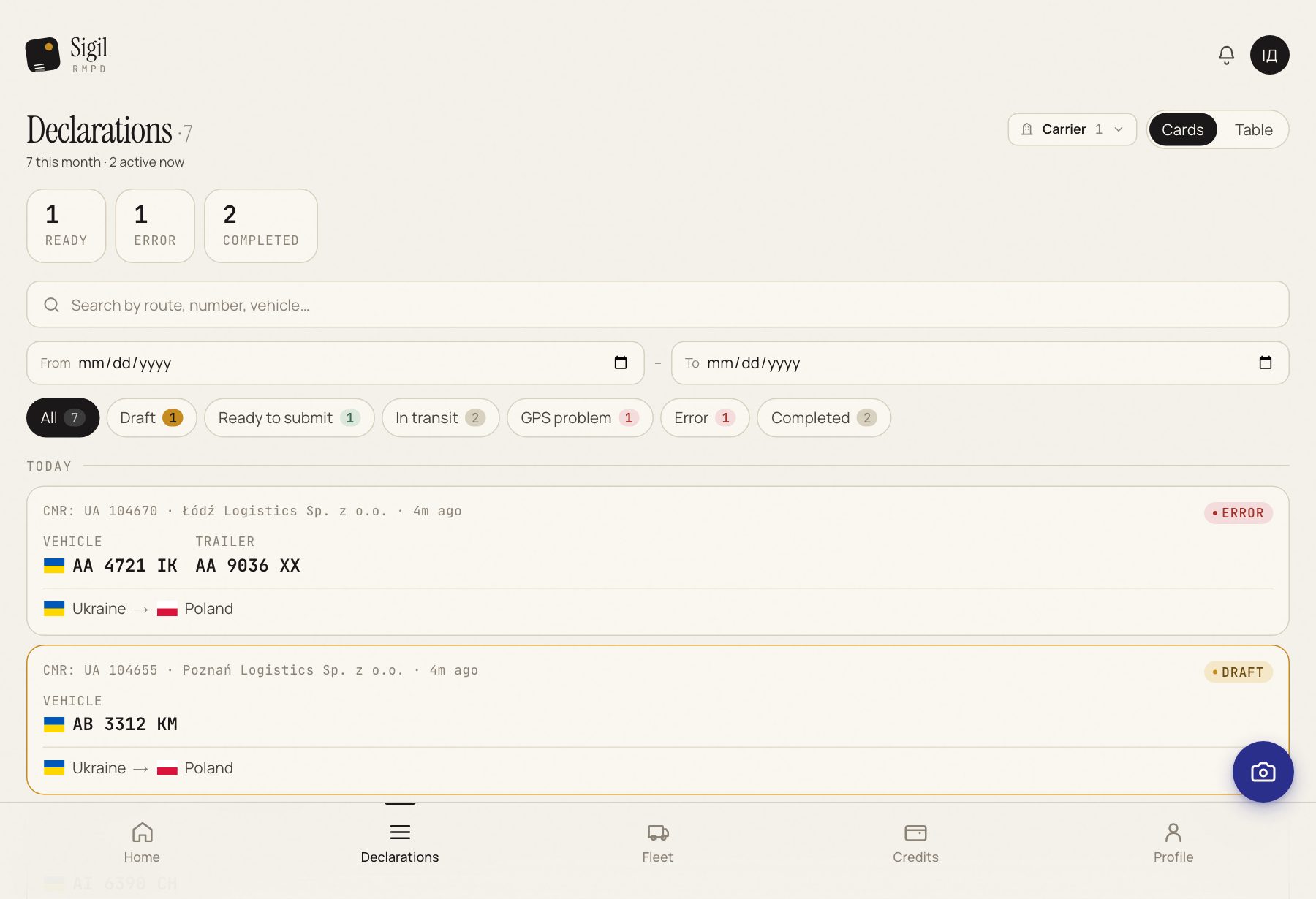
Declarations
All your declarations as a list: tractor, route as country flags, carrier, status. Filters by status at the top: Draft, Ready to submit, In transit, GPS problem, Completed, Error. Search finds by route, RMPD number and tractor plate. Press a row and the declaration page opens with all the data and the buttons: Modify, Cancel declaration, Check status, Check location, Empty repositioning.
Scan CMR
The shortest way to a new declaration: straight to the photo upload screen. Creating an RMPD.
Fleet
Tractors and trailers with plates, registration country and GPS locators. What is here, Sigil fills into new declarations by itself. Managing the fleet.
Credits
How many declarations you can still file and how to top up.
Profile
Your name, password, e-mail. Then the tabs Company profile (carriers, EKMT books) and PUESC account (PUESC login, environment, history sync). The user menu in the top right also has Language, Appearance and Help Center.
See also
A demo or training for your team
30 minutes online. We show how Sigil™ files an RMPD from a CMR and answer questions about your runs.