Managing your fleet
Updated
Fleet is your tractors and trailers with plates, registration country and GPS locators. What is here, Sigil fills into a new declaration by itself, so you type a tractor plate once.
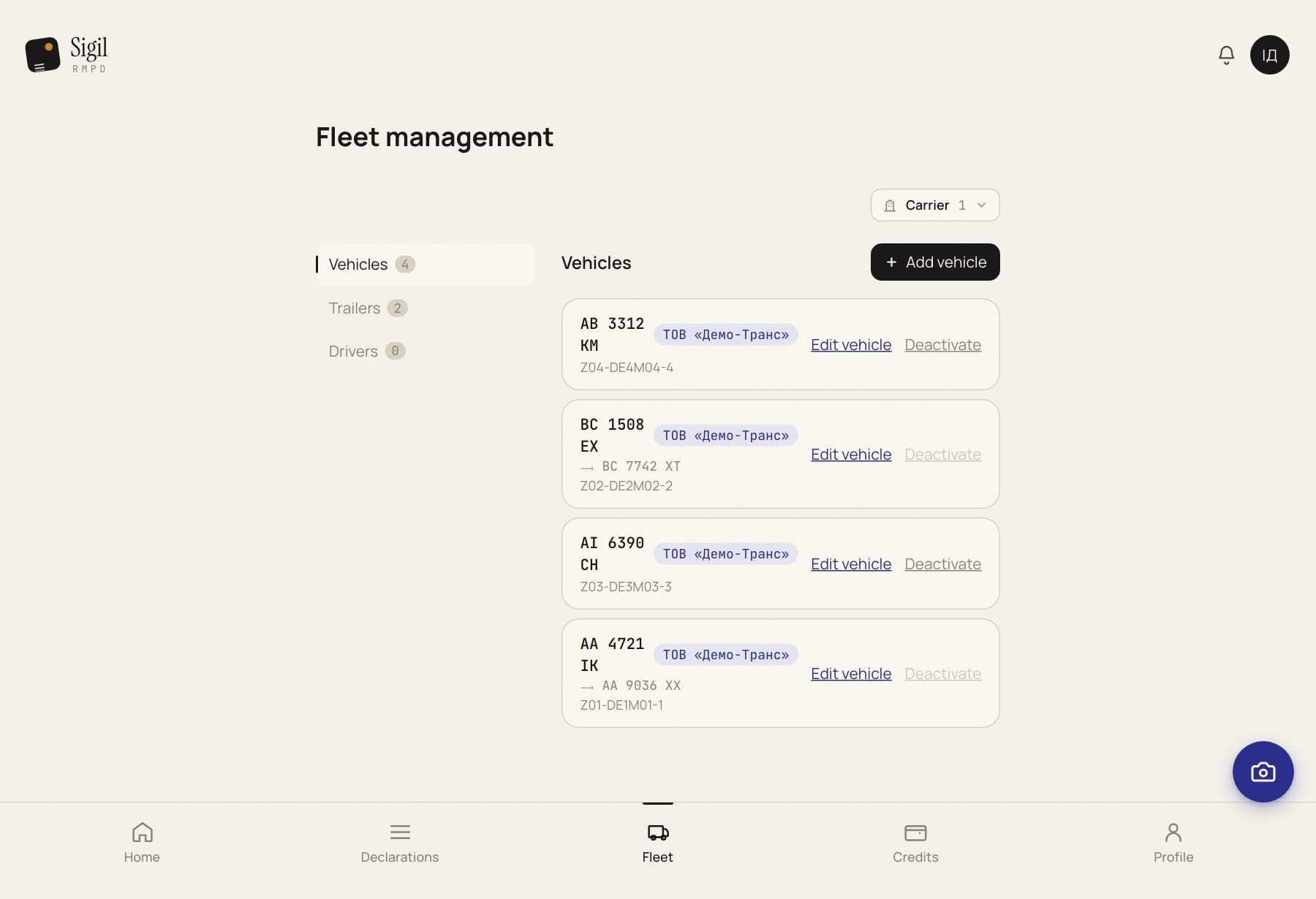
Where vehicles come from
- From the PUESC history after the sync: tractors and trailers from your declarations of the last year appear by themselves, together with their locator numbers.
- From the CMR: if Sigil has read a plate that is not in the fleet, it offers to save it right in the declaration form.
- By hand: Add vehicle and Add trailer. Adding a vehicle, Adding a trailer.
There is no need to enter the whole fleet in advance. It fills itself from the first declarations.
What to check
Go through the list every now and then:
- The tractor plate exactly as in the registration document. One different letter is a different truck at PUESC.
- The locator GPS locator device number: the one that is in this cab now. Moved the device to another vehicle: change it here, otherwise Sigil watches the wrong truck.
- The trailer paired with the tractor, if they always run together.
Change or remove
Press the row, then Edit vehicle or Edit trailer. Sold or leased out: Deactivate. The vehicle disappears from the list and from the suggestions but stays in the history; you can find it under "Archived" and bring it back.
If something is wrong
- "This locator belongs to another vehicle". That number already stands on another tractor. If the device really was moved, press Yes, move the locator: the number is cleared on the old vehicle.
- "Cannot deactivate: vehicle is assigned to an active declaration." Wait for the trip to end first.
Before submitting every RMPD, look at whether the tractor and trailer filled in are the ones actually driving. The fleet suggests; you answer for it.
See also
A demo or training for your team
30 minutes online. We show how Sigil™ files an RMPD from a CMR and answer questions about your runs.