Changing your email
Updated
This is how you change the e-mail address you sign in to Sigil with. You need access to the new mailbox and your current password.
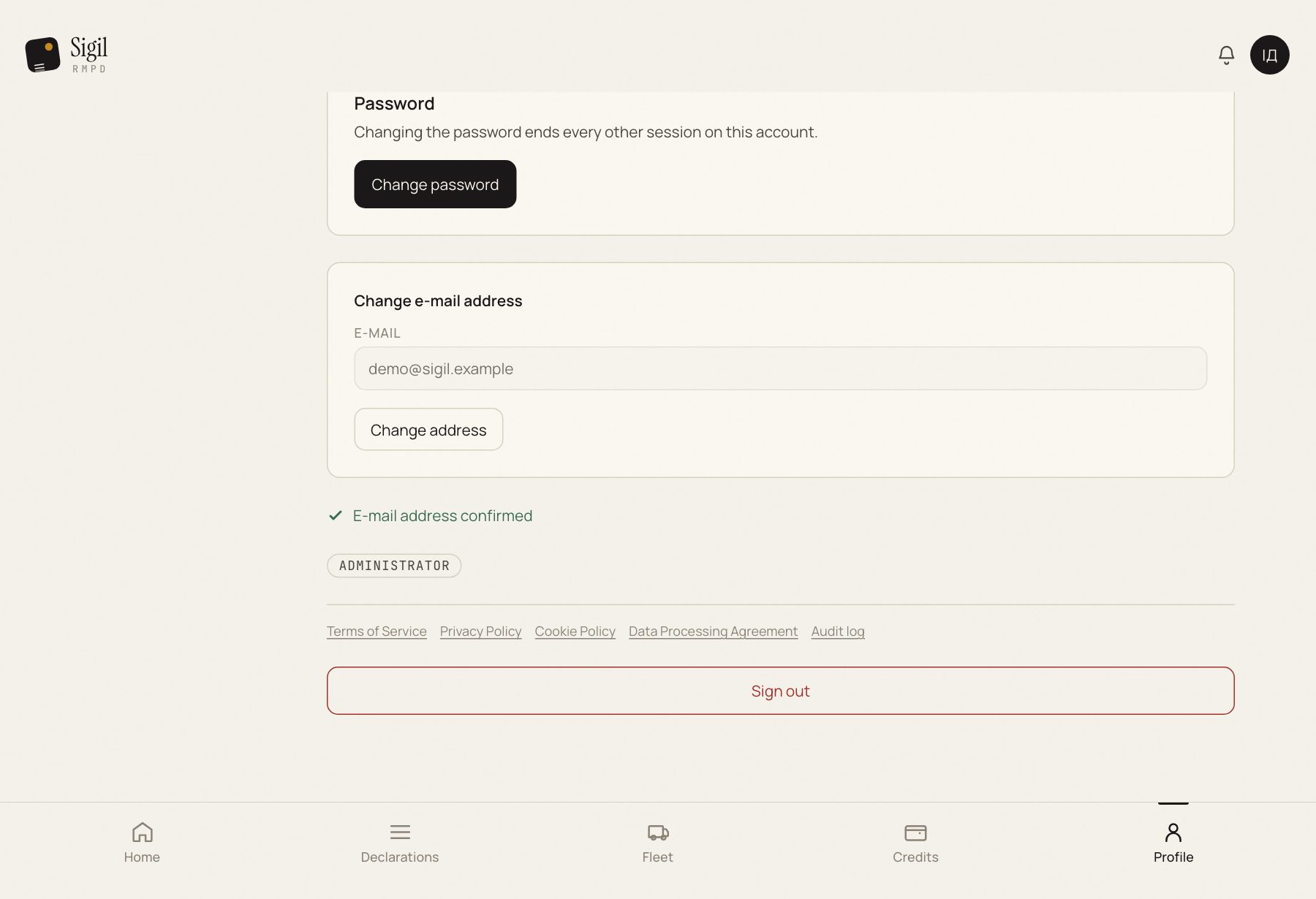
- Press your name in the top right and choose Profile.
- In the "Change e-mail address" block press Change address.
- Enter the New e-mail address and Your current password.
- Press Send confirmation link.
- Open the new mailbox, find the message from Sigil and press the link in it.
What happens next
The address changes only after the link is pressed. Until then you sign in with the old address, and the profile shows that a change is pending. Changed your mind: Cancel the change.
Declarations, fleet and history go nowhere when the address changes.
If something is wrong
- The message did not arrive. Look in spam. Check that the address is typed without a mistake: the profile shows which mailbox the message went to.
- "That is already the address on this account." You entered the same address you have now.
- The password does not fit. First reset the password with "Forgotten your password?" on the sign-in screen, then repeat.
- No access to the old mailbox. That is no obstacle: the link goes to the new one. If you do not remember the password either, write to support.
See also
A demo or training for your team
30 minutes online. We show how Sigil™ files an RMPD from a CMR and answer questions about your runs.