Adding a truck
Updated
This is how you add a tractor to the fleet. Sigil then fills it into declarations by itself.
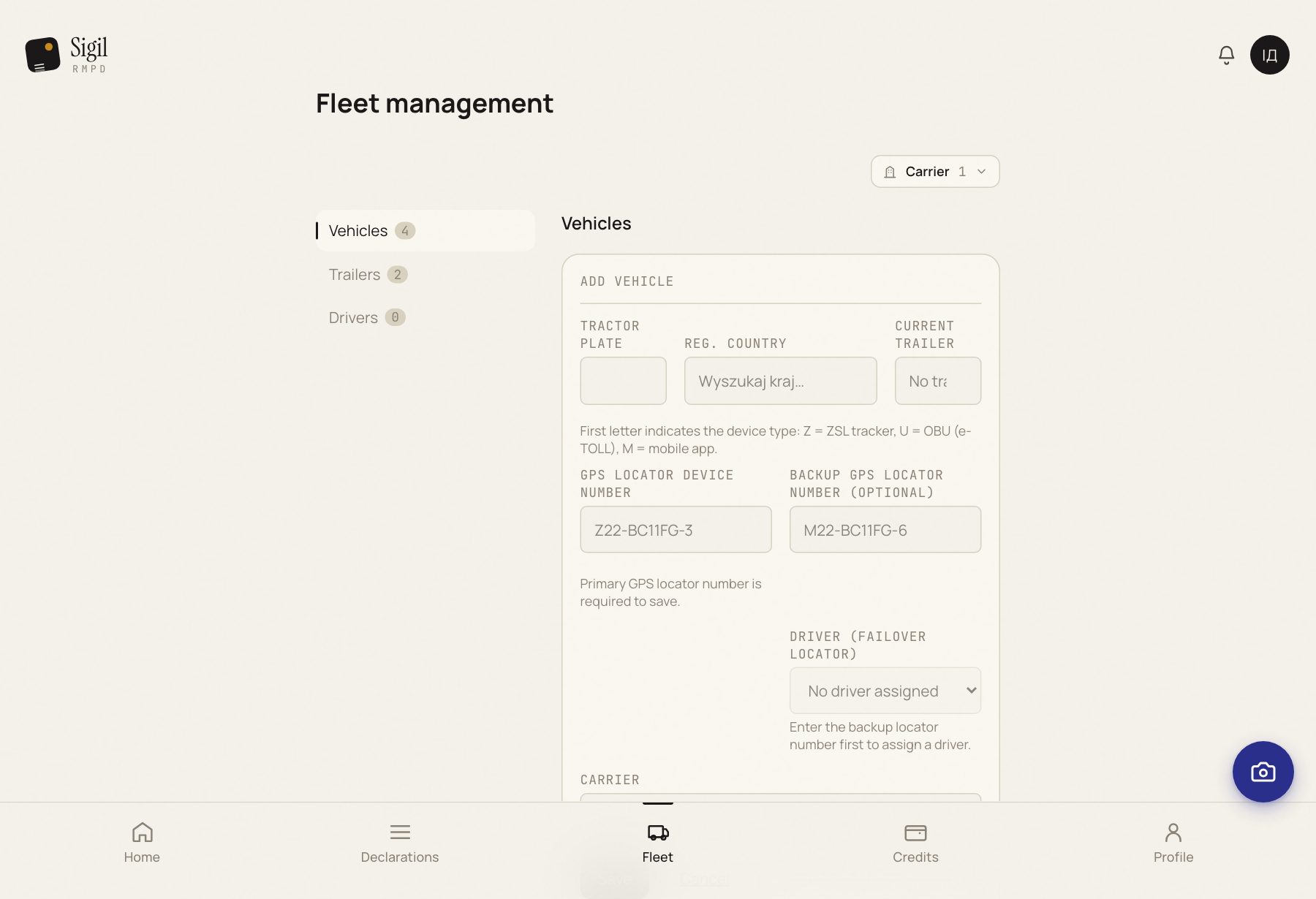
- Open Fleet and press Add vehicle.
- Tractor plate: no spaces or hyphens, exactly as in the registration document.
- Reg. country: choose from the list.
- GPS locator device number: the number from the contract with the GPS operator, for example Z24-SC68PA-8. The first letter says what it is: Z a ZSL locator, U an e-TOLL on-board unit, M a mobile app. Sigil checks the format and the check digit.
- There is a backup device: Add backup GPS locator and its number.
- Press Save.
What happens next
The tractor is on the list. In the next declaration Sigil recognises it by the plate from the CMR and fills it in together with the locator.
Adding straight from a declaration
Sigil has read a plate from the CMR that is not in the fleet: an offer to add this tractor appears under the field. Press it, enter the locator, and the tractor is saved without leaving the form.
If something is wrong
- "Invalid locator format". The number looks like Z24-SC68PA-8: a letter, two digits, a hyphen, six characters, a hyphen, a digit. Compare with the contract.
- "Invalid locator check digit". A mistake in one character. Retype carefully or ask the GPS operator for the number.
- "This locator belongs to another vehicle". The device was moved: Yes, move the locator. It was not: on one of the two vehicles the number is recorded wrongly; check both.
See also
A demo or training for your team
30 minutes online. We show how Sigil™ files an RMPD from a CMR and answer questions about your runs.