Uploading a CMR
Updated
This is how you hand the CMR to Sigil. From there Sigil reads the document itself; your job is only to check the result.
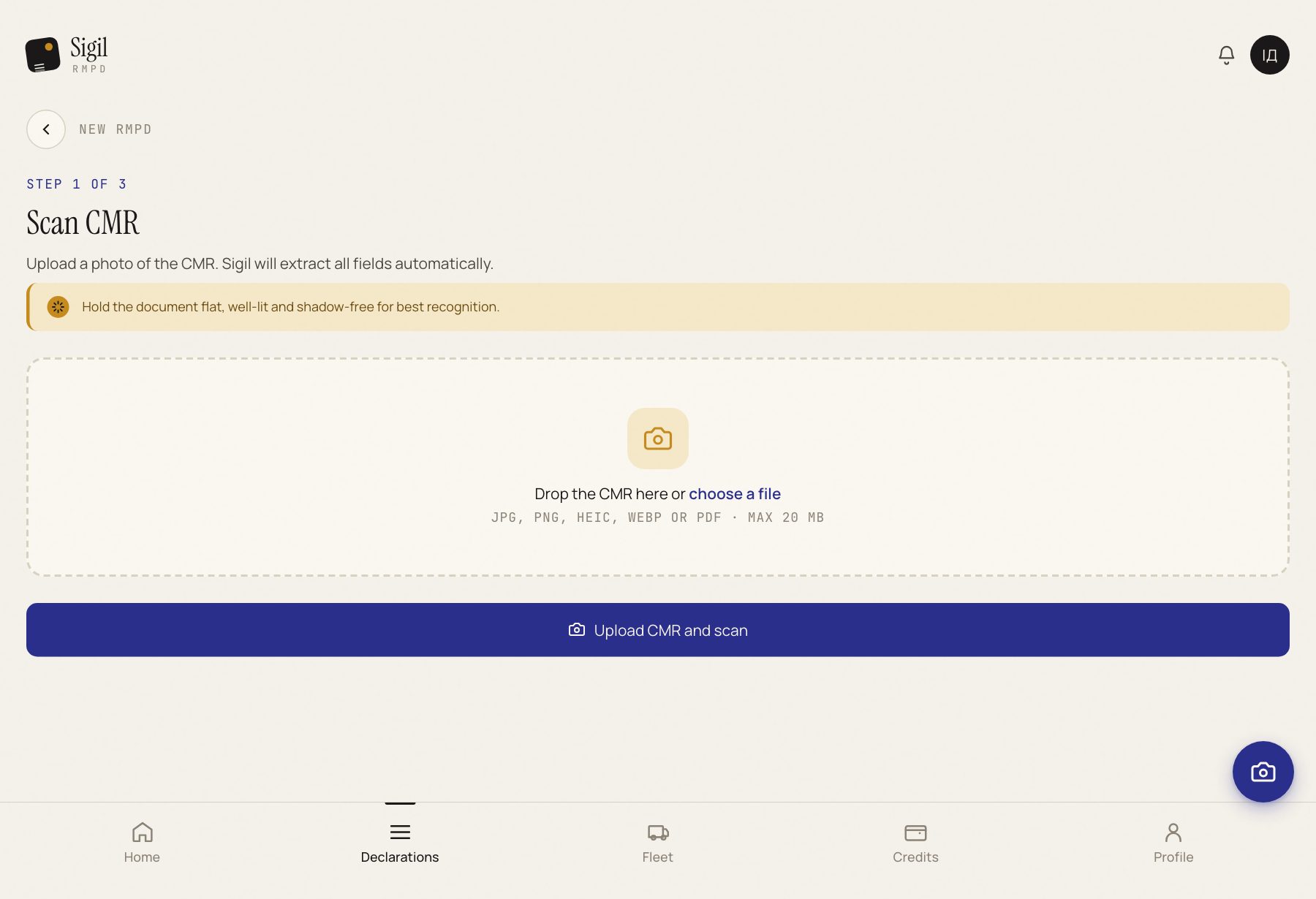
- Press Scan CMR in the menu or Create new RMPD on the home page.
- Drag the file into the frame or press choose a file. JPG, PNG, HEIC, WebP or PDF up to 20 MB will do. iPhone photos (HEIC) need no conversion.
- Look at the preview: is the whole document in the frame, is the text readable. Wrong file: Change file.
- Press Upload CMR and scan.
- Wait until the truck on the screen reaches the end. Sigil opens the declaration form with the fields filled in.
What happens next
Compare the fields with the paper: names, addresses, tractor and trailer plates, loading and unloading places. Whatever was read wrong, fix by hand in the field. Then: Creating an RMPD.
If something is wrong
- "Duplicate file detected". You have uploaded this photo before. Go to existing declaration if you want to continue that one, or Upload as new declaration if it really is a new trip.
- Sigil read few fields or read them with errors. It is almost always the photo: at an angle, in a sleeve, with glare, cropped. Take a new one following the instructions and upload it again with Re-scan the document.
- "This photo could not be read". Save the photo as JPG and upload that file.
See also
A demo or training for your team
30 minutes online. We show how Sigil™ files an RMPD from a CMR and answer questions about your runs.